TIC:Training: Difference between revisions
Nani&friends (talk | contribs) (formal edit: first image and space between titles) |
Nani&friends (talk | contribs) (→View history/ version control: confidential info) |
||
| (26 intermediate revisions by the same user not shown) | |||
| Line 2: | Line 2: | ||
<span style="background-color:#FF69B4;padding:10px 10px;border:4px magenta;font-family:sans-serif; font-color: crimson;">[[TIC:Index|'''TECH INFRASTRUCTURE COALITION''']]</span> | <span style="background-color:#FF69B4;padding:10px 10px;border:4px magenta;font-family:sans-serif; font-color: crimson;">[[TIC:Index|'''TECH INFRASTRUCTURE COALITION''']]</span> | ||
<br> | <br> | ||
<br> | |||
<br> | |||
<div style="border:10px double purple;border-radius:80px;background:linear-gradient( #FFAC05, #FF05DE, #C60AF0, #FFAC05);text-align:center;font-family: century-gothic,;color:white;padding:20px 20px";> | |||
<big><big><big><big>'''A Friendly Wiki manual for TIC'''</big></big></big></big></div> | |||
<br> | <br> | ||
<br> | <br> | ||
| Line 12: | Line 16: | ||
Find more complex/in-depth gestures and explanations [[mediawikiwiki:Help:Contents|here]]. | Find more complex/in-depth gestures and explanations [[mediawikiwiki:Help:Contents|here]]. | ||
=== A few usefull reminders: === | === A few usefull reminders: === | ||
| Line 19: | Line 21: | ||
* When Logging in and entering information in the search bar CAPITAL & small letters matter | * When Logging in and entering information in the search bar CAPITAL & small letters matter | ||
====== '''Have only one person editing at a time''' ====== | |||
-> saving changes while someone else is editing them might make them loose all their efforts | |||
* ADVICE: write your texts in another document and copy paste them into the Wiki, this way you can be sure to not lose all your & your collegues efforts | |||
* Don't use Wiki for confidential information, everything once saved can be traced back, until we find a moment to password protect a page everything will be searchable | * Don't use Wiki for confidential information, everything once saved can be traced back, until we find a moment to password protect a page everything will be searchable | ||
| Line 25: | Line 30: | ||
* Add comments for edits so one can more easily navegate and find previous versions | * Add comments for edits so one can more easily navegate and find previous versions | ||
== How to: == | |||
<br> | <br> | ||
==== <big>Create an account</big> ==== | |||
<div style="text-align:center;"> | <div style="text-align:center;"> | ||
<s>This needs to be done by somene with an ADMINISTRATOR account. Nani is a Beaurocrat so has no means of making an account.</s> | |||
This needs to be done by somene with an ADMINISTRATOR account. Nani is a Beaurocrat so has no means of making an account. | |||
<br> | <br> | ||
<br> | <br> | ||
==== Create a namespace ==== | </div> | ||
<hr> | |||
==== <big>Create a namespace</big> ==== | |||
<div style="text-align:center;"> | |||
write a link for your namespace in the search bar [[(NAMESPACENAME):(frontpagetitle|https://titipi.org/wiki/index.php/(NAMESPACENAME):(frontpagetitle]]) | write a link for your namespace in the search bar [[(NAMESPACENAME):(frontpagetitle|https://titipi.org/wiki/index.php/(NAMESPACENAME):(frontpagetitle]]) | ||
example: [[TIC:Index|https://titipi.org/wiki/index.php/TIC:Index]] | ''example: [[TIC:Index|https://titipi.org/wiki/index.php/TIC:Index]]'' | ||
a message will appear: | a message will appear: | ||
<br> | <br> | ||
[[File:260206 create namespace.jpg| | <br> | ||
[[File:260206 create namespace.jpg|799 × 133 pixelsframeless|border]] | |||
<br> | |||
<br> | <br> | ||
go on create this space -> a namespace has been created and you can start editing! | go on create this space -> a namespace has been created and you can start editing! | ||
<br> | <br> | ||
<br> | <br> | ||
==== Create a page within a namespace ==== | </div> | ||
<hr> | |||
==== <big>Create a page within a namespace</big> ==== | |||
<div style="text-align:center;"> | |||
Same logic as creating a Namespace | Same logic as creating a Namespace | ||
| Line 53: | Line 65: | ||
for better navigating the pages and for knowing to which namespace a page is part of use the titel of the namespace in the link you create | for better navigating the pages and for knowing to which namespace a page is part of use the titel of the namespace in the link you create | ||
example: | ''example:'' | ||
''this is the front page of the namespace: [[TIC:Index|https://titipi.org/wiki/index.php/TIC:Index]]'' | |||
''these are pages within this namespace: [[TIC:Index|https://titipi.org/wiki/index.php/TIC:About]] or [[TIC:Index|https://titipi.org/wiki/index.php/TIC:]]Coalitions'' | |||
<br> | |||
<br> | |||
</div> | |||
<hr> | |||
==== <big>Intorduce a text</big> ==== | |||
<div style="text-align:center;"> | |||
To start introducing material into your Wiki page you can either go on '''"Edit"''' or '''"Edit source"'''. | |||
===== On "Edit" you will find a simple tool bar that looks like this: ===== | |||
<br> | |||
[[File:Interface to Edit text.jpg|border|frameless|600x600px]] | |||
<br> | |||
<br> | |||
Use '''"Format Paragraph"''' to determine what kind of text you are writing. For example this Text you're reading now is a "Paragraph" but the titel of this text '''"Introduce a text"''' s a '''"Sub-heading 2"'''. | |||
When you use the different Headings, the page will automatically introduce an Index at the top or your page, where you will have a better overview and quickly find your way to the part of the next that you need. | |||
Use '''<u>''<big>"A"</big>''</u>''' to style text without it having implications on your <big>Index</big>. | |||
Use <big>🔗</big> to create <big>links</big> within the wiki or to external sites with other text | |||
''example: [https://www.equinox-eu.com/ click here to visit equinox webpage]'' | |||
''instead of simply copy-pasting the link into the text, which will lool like this: https://www.equinox-eu.com/ .'' | |||
Use <big>"Cite"</big> to introduce References and Citations into you text. | |||
Use <big>"structures"</big> to create bullet-point or numbered lists. | |||
Use <big>"Insert"</big> to insert Images and Media, Tables and more. | |||
Use <big>"Ω"</big> for entering special Symbols. | |||
[[mediawikiwiki:Help:VisualEditor/User_guide#|Here is a more detailed description of how you can edit your text using the "Edit" Interface]]<br> | |||
<br> | |||
<br> | |||
====== A more complex way of editing the text is going on "Edit source" here you can edit the text using coding language. ====== | |||
This will be usefull if you want to add other design elements to your page. | |||
For example if you want to add coluumns or want your text centered or to the right (see Columns and other formatting), | |||
or maybe you want to add colour or have fun designing buttons like this one:<br> | |||
<br> | |||
<span style="background-color:#FF69B4;padding:10px 10px;border:4px magenta;font-family:sans-serif; font-color: crimson;">'''[https://www.equinox-eu.com/ EQUINOX]'''</span> | |||
<br> | |||
<br> | |||
If you dont know how to do certain design choices you are always welcome to copy the code from another page and adapting it to your own needs. | |||
</div> | |||
<br> | |||
<br> | |||
<hr> | |||
==== <big>Upload an image</big> ==== | |||
<div style="text-align:center;"> | |||
To add an image/file to your page go to insert> images and media | |||
First you will encounter a "search" window, | |||
here you will find/ chose all media that you have ever uploaded on the wiki, in case you don't have any yet you need to use the "upload" area first | |||
<br> | |||
<br> | |||
[[File:260210 upload image.jpg|border|center|frameless|400x400px|this is the caption of the image]] | |||
<br> | <br> | ||
You will have to tick the box <big>"This is my own work"</big> or else you wont be allowed to upload the image (policies of Titipi). | |||
[[File:260210 media setting.jpg|alt=this is the alternative text: screenshot of the window to edit media introduced to the titipi wiki|thumb|This is the caption of the image. This image is image style "Thumbnail", on the contrary to the other images on this page which are "Frameless"]] | |||
<br> | |||
Then it will ask you the "<big>Details":</big> Name and a description of the image. | |||
<br> | |||
<br> | |||
When you confirm the image you want to use you can add a "<big>caption":</big> a text that appears under your image | |||
<br> | <br> | ||
<br> | <br> | ||
and an "<big>alternative text captions"</big>: for users who use screen readers, or who have disabled image display. | |||
<br> | <br> | ||
<br> | <br> | ||
You can also set various parameters for the image in the "<big>Advanced settings window"</big>. These include the alignment, the type, and size of the image. | |||
When you want the image to be wraped with the text, chose if you want the image left, center or right, | |||
once you insert the image you can click & drag the image up and down to your desired height. | |||
If you have multiple Images to upload you can do go insert > Gallery. | |||
<br> | <br> | ||
<br> | <br> | ||
''Example: This is a Gallery of 4 images:''<gallery mode="packed"> | |||
File:Nani earring.jpg|this is a caption for a shark earring | |||
File:Free Gaza to the Sea.jpg|From the river to the sea | |||
File:We trust and we lost.png|another caption for a diagram that helps to you find and lose | |||
File:To trust yourself.jpg|to trust or to treat yourself | |||
</gallery> | |||
<br> | <br> | ||
Reminder: some things are only editable in the <big>"Edit source"</big> area where you can code and format to your liking.<br> | |||
<br> | <br> | ||
<br> | <br> | ||
==== | </div> | ||
<hr> | |||
==== <big>Upload a PDF</big> ==== | |||
<div style="text-align:center;"> | |||
[https://www.equinox-eu.com/wp-content/uploads/2025/07/Ending-the-criminalisation-of-migration-solidarity.pdf This is a PDF from Equinox, I used the "link" function to place it here and change the text] | |||
and this one I inserted a downloaded, cut and compressed pdf (titipi only takes files up to 2MB) like I insert an Image. | |||
<br> | |||
The result is that the link doesnt take us directly to the pfd. | |||
<br> | |||
[[File:Ending-the-criminalisation-of-migration-solidarity 3 first pages compressed.pdf|alt=alt text|thumb|caption]] | |||
</div> | |||
<hr> | |||
==== <big>Columns and other formatting</big> ==== | |||
<div style="text-align:center;"> | |||
On "Edit source" insert this code | On "Edit source" insert this code | ||
<nowiki><div class=columns> before the beginning of the text you want to be seen as a column, at the end of the same text insert this code </div></nowiki> . | |||
''<nowiki><div class=columns></nowiki>'' before the beginning of the text you want to be seen as a column, at the end of the same text insert this code ''<nowiki></div></nowiki>'' . | |||
<br> | <br> | ||
<br> | <br> | ||
</div> | </div> | ||
Example: | ''Example:'' | ||
<div class=columns> | <div class=columns> | ||
| Line 90: | Line 208: | ||
''We build collective power through coalitions of marginalised communities. Our model addresses the gap between grassroots activism and impactful political advocacy led by affected communities.'' '' '' | ''We build collective power through coalitions of marginalised communities. Our model addresses the gap between grassroots activism and impactful political advocacy led by affected communities.'' '' '' | ||
'''''Structural change & redistribution''''' | '''''Structural change & redistribution''''' | ||
''We develop critical analysis and solutions to address the root causes of structural oppressions, rather than the interpersonal symptoms. We look to operationalise long-term visions for structural change rooted in decriminalisation, de-militarisation and redistribution.'' | ''We develop critical analysis and solutions to address the root causes of structural oppressions, rather than the interpersonal symptoms. We look to operationalise long-term visions for structural change rooted in decriminalisation, de-militarisation and redistribution.'' | ||
</div> | </div> | ||
Its similar If you want to change the position of your text: | |||
Text on the left is the default mode on this Wiki, so you dont have to change anything for this to happen. | |||
<div style="text-align:center;"> If you want text on the center, but the text you want centered in between this code | |||
''<nowiki><div style="text-align:center;"></nowiki>'' enter text you want centered ''<nowiki></div></nowiki>'' | |||
</div> | |||
<div style="text-align:right;"> And If you want the text to be aligned to the right, use this code:<br> | |||
''<nowiki><div style="text-align:right;"></nowiki>'' enter text you want aligned to the right ''<nowiki></div></nowiki>'' | |||
</div> | |||
<br> | |||
<div style="text-align:center;"> | <div style="text-align:center;"> | ||
these lines between the different chapters you can insert by writing in the edit source the following code ''<nowiki><hr></nowiki>'' | |||
Similarly, If you want there to be more space between lines you can write the code ''<nowiki><br></nowiki>'' as often as needed | |||
</div> | |||
<br> | <br> | ||
<br> | <br> | ||
<hr> | |||
==== View history/ version control ==== | ==== View history/ version control ==== | ||
< | <div style="text-align:center;"> | ||
< | On <big>"View history"</big> you can see all the changes made to your page, the date, time and the user who made them. | ||
There will be a long list made of lines like these: | |||
[[File:260212 view history.jpg|frameless|900x900px]] | |||
on <big>" (|cur "</big> you can see the differences made between that edit and the previous one. | |||
On <big>" |prev) "</big> you can see the diference between that edit and the next one. Both in code. | |||
Underneath the code (which sometimes can be quite long) you will see the preview of that page. | |||
In ''italic'' you will find the summary written when the changes of that edit were saved. | |||
this is what it looked like:[[File:260212 save your changes.jpg|center]] | |||
In " (undo) " you can undo all changes leading up to that page. | |||
It is important to know that even if you undo something, one can still see what has been undone or deleted, | |||
since all versions of the wiki will be stored you should not save confidential information to the wiki. | |||
even if password protected? | |||
even for someone without an account? | |||
====== ??? is this right??? did i understand correctly? ====== | |||
</div> | |||
<hr> | |||
==== Make a page private & password protected ==== | ==== Make a page private & password protected ==== | ||
<div style="text-align:center;"> | |||
</div> | |||
<hr> | |||
==== Index ==== | |||
<div style="text-align:center;"> | |||
====== see Ïntroduce a text" or is there more to it? ====== | |||
</div> | |||
<hr> | |||
==== Links in and out ==== | |||
<div style="text-align:center;"> | |||
====== see Ïntroduce a text" or is there more to it? ====== | |||
</div> | </div> | ||
<hr> | |||
==== Unfolding ==== | |||
<hr> | |||
Latest revision as of 10:59, 12 February 2026
A Friendly Wiki manual for TIC
Hello TIC!
This is a small manual with a few basic gestures that will help you to work on and enjoy your Wiki!
Find more complex/in-depth gestures and explanations here.
A few usefull reminders:
- When Logging in and entering information in the search bar CAPITAL & small letters matter
Have only one person editing at a time
-> saving changes while someone else is editing them might make them loose all their efforts
- ADVICE: write your texts in another document and copy paste them into the Wiki, this way you can be sure to not lose all your & your collegues efforts
- Don't use Wiki for confidential information, everything once saved can be traced back, until we find a moment to password protect a page everything will be searchable
- Add comments for edits so one can more easily navegate and find previous versions
How to:
Create an account
This needs to be done by somene with an ADMINISTRATOR account. Nani is a Beaurocrat so has no means of making an account.
Create a namespace
write a link for your namespace in the search bar https://titipi.org/wiki/index.php/(NAMESPACENAME):(frontpagetitle)
example: https://titipi.org/wiki/index.php/TIC:Index
a message will appear:

go on create this space -> a namespace has been created and you can start editing!
Create a page within a namespace
Same logic as creating a Namespace
write a link for your page in the searchbar https://titipi.org/wiki/index.php/(NAMESPACENAME):(pagetitle)
for better navigating the pages and for knowing to which namespace a page is part of use the titel of the namespace in the link you create
example:
this is the front page of the namespace: https://titipi.org/wiki/index.php/TIC:Index
these are pages within this namespace: https://titipi.org/wiki/index.php/TIC:About or https://titipi.org/wiki/index.php/TIC:Coalitions
Intorduce a text
To start introducing material into your Wiki page you can either go on "Edit" or "Edit source".
On "Edit" you will find a simple tool bar that looks like this:

Use "Format Paragraph" to determine what kind of text you are writing. For example this Text you're reading now is a "Paragraph" but the titel of this text "Introduce a text" s a "Sub-heading 2".
When you use the different Headings, the page will automatically introduce an Index at the top or your page, where you will have a better overview and quickly find your way to the part of the next that you need.
Use "A" to style text without it having implications on your Index.
Use 🔗 to create links within the wiki or to external sites with other text
example: click here to visit equinox webpage
instead of simply copy-pasting the link into the text, which will lool like this: https://www.equinox-eu.com/ .
Use "Cite" to introduce References and Citations into you text.
Use "structures" to create bullet-point or numbered lists.
Use "Insert" to insert Images and Media, Tables and more.
Use "Ω" for entering special Symbols.
Here is a more detailed description of how you can edit your text using the "Edit" Interface
A more complex way of editing the text is going on "Edit source" here you can edit the text using coding language.
This will be usefull if you want to add other design elements to your page.
For example if you want to add coluumns or want your text centered or to the right (see Columns and other formatting),
or maybe you want to add colour or have fun designing buttons like this one:
EQUINOX
If you dont know how to do certain design choices you are always welcome to copy the code from another page and adapting it to your own needs.
Upload an image
To add an image/file to your page go to insert> images and media First you will encounter a "search" window,
here you will find/ chose all media that you have ever uploaded on the wiki, in case you don't have any yet you need to use the "upload" area first

You will have to tick the box "This is my own work" or else you wont be allowed to upload the image (policies of Titipi).

Then it will ask you the "Details": Name and a description of the image.
When you confirm the image you want to use you can add a "caption": a text that appears under your image
and an "alternative text captions": for users who use screen readers, or who have disabled image display.
You can also set various parameters for the image in the "Advanced settings window". These include the alignment, the type, and size of the image.
When you want the image to be wraped with the text, chose if you want the image left, center or right,
once you insert the image you can click & drag the image up and down to your desired height.
If you have multiple Images to upload you can do go insert > Gallery.
-

this is a caption for a shark earring
-

From the river to the sea
-
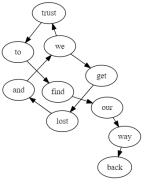
another caption for a diagram that helps to you find and lose
-

to trust or to treat yourself


Reminder: some things are only editable in the "Edit source" area where you can code and format to your liking.
Upload a PDF
This is a PDF from Equinox, I used the "link" function to place it here and change the text
and this one I inserted a downloaded, cut and compressed pdf (titipi only takes files up to 2MB) like I insert an Image.
The result is that the link doesnt take us directly to the pfd.
File:Ending-the-criminalisation-of-migration-solidarity 3 first pages compressed.pdf
Columns and other formatting
On "Edit source" insert this code
<div class=columns> before the beginning of the text you want to be seen as a column, at the end of the same text insert this code </div> .
Example:
Intersectional Justice Struggle
We connect economic, racial, social, migrant, feminist, LGBT and digital justice work, bridging over silos in social justice organising. We focus on the need to address intersectional oppressions and create unity between our communities for a stronger justice movement.
Coalition & solidarity organising
We build collective power through coalitions of marginalised communities. Our model addresses the gap between grassroots activism and impactful political advocacy led by affected communities.
Structural change & redistribution
We develop critical analysis and solutions to address the root causes of structural oppressions, rather than the interpersonal symptoms. We look to operationalise long-term visions for structural change rooted in decriminalisation, de-militarisation and redistribution.
Its similar If you want to change the position of your text:
Text on the left is the default mode on this Wiki, so you dont have to change anything for this to happen.
<div style="text-align:center;"> enter text you want centered </div>
<div style="text-align:right;"> enter text you want aligned to the right </div>
these lines between the different chapters you can insert by writing in the edit source the following code <hr>
Similarly, If you want there to be more space between lines you can write the code <br> as often as needed
View history/ version control
On "View history" you can see all the changes made to your page, the date, time and the user who made them.
There will be a long list made of lines like these:

on " (|cur " you can see the differences made between that edit and the previous one.
On " |prev) " you can see the diference between that edit and the next one. Both in code.
Underneath the code (which sometimes can be quite long) you will see the preview of that page.
In italic you will find the summary written when the changes of that edit were saved.

In " (undo) " you can undo all changes leading up to that page.
It is important to know that even if you undo something, one can still see what has been undone or deleted,
since all versions of the wiki will be stored you should not save confidential information to the wiki.
even if password protected?
even for someone without an account?